Showing posts with label recover iphone contacts after Upgrading to iOS 9. Show all posts

Monday, March 13, 2017

Recover Lost Contacts from iPhone after iOS 9 Upgrade

iOS 8 has been on our iPads and iPhones for six or seven months, but we’re already thinking about iOS 9. When will it come out, what new features will it offer and which iPads, iPhones and iPod touch devices will it run on? In our iOS 9 rumour roundup article we gather together all the clues and hints about iOS 9, and we’ll update it regularly with all the information available about iOS 9’s launch details.
ios-9-iphone-data-recovery
Update, 5 March 2015: We can also talk about the features Apple fans would like to see in iOS 9. After our discussion of iOS 9 launch date rumours, read on for our wishlist of 23 iOS 9 features: the functions and upgrades we’d love to see in iOS 9.
The launch of iOS 9 is presumably still months away; we expect the unveiling at WWDC 2015 in June, followed by a full launch alongside the iPhone 6c/iPhone 6s/iPhone 7 in September. But it’s possible that Apple staff are already publicly testing prototype builds of iOS 9. Consider us unconvinced, but here’s the theory.
recover-data-iphone-ios-9
More and more iPhone users upgrading their iPhone 5s, iPhone 5c, iPhone 5, iPhone 6, iPhone 6 Plus to iOS 9,but after iOS 9 update,it may cause erase all contacts (phone numbers) on your iPhone, many iPhone users may ask is it possible to restore lost contacts on iPhone after iOS 9 update? Actually,those lost contacts on iPhone iOS 9 still stored in the device, you still have chance to retrieve iPhone lost contacts back after upgrading to iOS 9. However,how to recover lost phone numbers from iPhone after update to iOS 9? This article mainly teach you a easy way to retrieve iPhone lost contacts after update to iOS 9.
Today,we recommend your use this iPhone Contacts Recovery software-iOS 9 Data Recovery,which allows you restore lost contacts from iPhone directly after upgrading the iPhone to iOS 9/ iOS 8.What’s more, the iOS 9 iPhone Data Recovery allows you restore other lost data on iPhone after iOS 9 update/iOS jailbrak,such as contacts, notes, photo, apps, whatsapp messages or imessages. Let’s show you the use guide to recover lost contact and sms back from iOS 9 iPhone.

       

Recover lost contacts on iPhone 6/6 Plus/5S/5 after iOS 9 upgrade

Step 1: Run the ios recovery and connect your iPhone to the computer
recover iPhone lost data
After downloading and installing the program, then run it on your computer. Connect your iPhone to the computer.
For iPhone 6/6 Plus/5S/5C/5 user, you can click “Start Scan” button directly.
Step 2: Analyze and scan your contacts from iPhone
Once your iPhone is recognized, you can see the information of your device on the primary window, now you can click on “Start Scan” to let the program analyze and scan the lost data from your iPhone.
iPhone data recovery
Step 3: Preview and recover lost contacts from iPhone
You can preview all found data before recovery after the scanning. Choose “Contacts” to preview, then mark the ones you wanted and click “Recover” butto to save them on your computer easily.

preview all deleted files on iPhone
Free download the iOS Data Recovery to restore iPhone lost contacts:


This iOS Data Recovery software is used for recovering deleted or lost files from iOS devices and iTunes backups, and the software also helps users backup iPhone, iPad and iPod touch files to computer. The software works perfectly with the latest version of iOS 9, so you no worries about lost data after upgrading iPhone to iOS 9,iOS 8.With the help of data recovery for iOS 9,you can restore sms,contacts,photos,videos from iPhone after iOS 9, iOS 8 update.

Wednesday, March 8, 2017

Restore/Recover Deleted Contacts from iPhone


"I accidentally deleted important contacts from my iPhone 6S. They are really important to me and I don't have a backup file for them. Is there any way you can help me restore the file without backup? "
Jane asked
Contact is the most basic and important data on your iPhone. No contact, you can't even call or send messages. If you lose or accidentally delete contacts from iPhone, read this post and learn how to retrieve contacts from iPhone and no backup files. IPhone data recovery is the software you need to use to get back to iPhone.


IPhone data recovery this powerful software can scan your iPhone and iPhone backup files to find missing and delete contacts and other data. You can recover deleted or lost contacts, photos, videos, text messages, call logs, notes, calendar, reminders, WhatsApp messages from iPhone easy. Learn how to recover deleted photos from iPhone and how to recover deleted iMessages here.


Tutorials 1:Smart Recovery
Tutorials 2: Rcover Data from IOS Device 

Tutorials 3: Recover Data from iTunes Backup


Step 1: Select the File Types You Need to Recover
Launch the iMyFone D-Back after downloading it. From the "Smart Recovery" tab, click the button "Start".

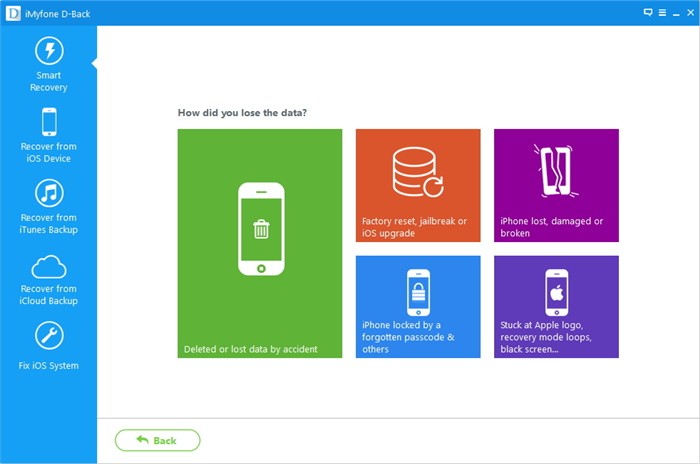
Step 2: Choose How You Lost the Files
Next, you need to choose the situation on how you lost your data for subsequent scan and recovery.

Step 3: Scan and Recover Your Lost iPhone Files
Next, all scan and search work will be completed by the iPhone recovery software itself. iMyFone D-Back can analyze and recover your data from iOS device, iTunes backup or iCloud backup. The following procedures are similar to "recovery from iOS Device/iTunes Backup/iCloud Backup" tabs. With a few easy steps, you can get your lost iPhone data back.
If you know for sure where you could find the data, you can also start scanning from iOS Device/iTunes Backup/iCloud Backup tabs respectively. Please read the specific instructions for your reference.


Tutorials 2: Recover Data from IOS Device

Step 1: Connect and Scan Your iOS Device
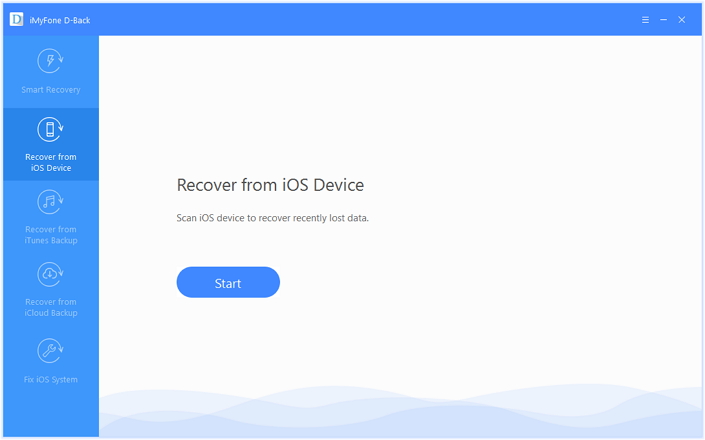
After launching the data recovery software for iPhone, start at the "Recover from iOS Device" tab. Click on "Start".

Now, select the types of files that you would like restore. You will then be asked to connect your iOS device to the computer.

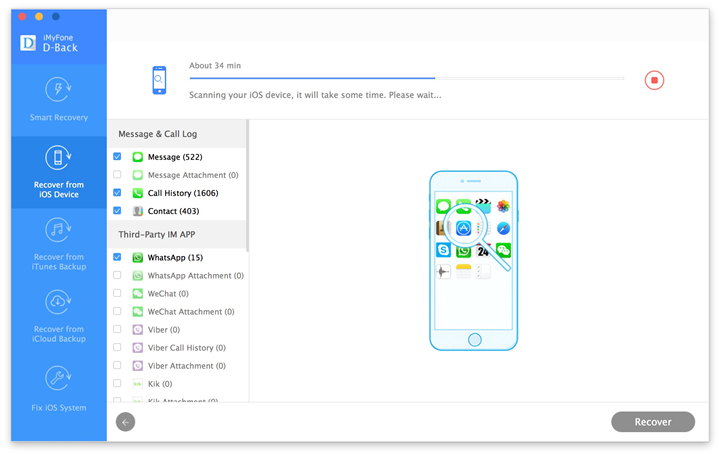
As soon as the program successfully detects your iDevice, click "Scan" to find the file you need.

Step 2: Preview and Recover Data from iPhone/iPad/iPod touch
After the scan is finished, all recoverable data will be clearly organized as the picture below shows. Click each tab to check all files, or only preview the deleted items by choosing "Show only the deleted files". Select the files which you want to recover, and then click "Recover" at the right bottom corner.

A pop-up window will display to let you choose the location to store the recovered files and it will take only a few minutes to finish the recovery.


Tutorials 3: Recover Data from iTunes Backup


Step 1: Choose and Scan from iTunes Backup
Click "Start" from the "Recover from iTunes Backup" tab.

Select the file types you need.

Then choose the exact iTunes backup from which you want to recover data and click "Scan". Please wait a moment while it scans.

Step 2: Preview and Recover Data from iTunes Backup
The search results will be showed on the interface clearly. Browse them according to your needs: or "Only show the deleted files", and select the exact ones you need. Then click "Recover".

You need to select or create a folder as the recovery path. Then iMyFone D-Back will recover the data to the folder and you can check it after finishing the recovery process .