Showing posts with label recover contacts from samsung galaxy. Show all posts

Monday, March 13, 2017

How to Rceovery Lost/Deleted Contacts from Samsung Galaxy?

How to Restore Lost Contacts from Samsung Galaxy

For your Samsung Galaxy, videos, music, office files like PPT, PDF, etc. will occupy large memory space. Many users may delete some contents to make room for new resource. Tragically, you unexpectedly delete your contacts because of misoperation. Are you feel regretful? Can’t you find back your lost numbers again without any tool? Now stop worrying about this, with Samsung Data Recovery, you can easily make contacts recovery.

Restore Lost Contacts from Samsung Galaxy
Samsung Data Recovery, is specially designed for rescuing deleted contacts from Samsung Galaxy. It will extract lost contacts directly from your device and you don’t need to input your phone numbers one by one again. In addition, messages, videos, music, and other file types are also can be retrieved.

This program applies to all currently popular Samsung Galaxy smartphones:
Samsung Galaxy Note III, Samsung Galaxy S4, Samsung Galaxy S3, Samsung Galaxy S2, Samsung Galaxy S, Samsung Galaxy Note II, Samsung Galaxy Note, Samsung Galaxy S3 Mini, Samsung Galaxy S2 Plus, Samsung Galaxy Ace, Samsung Galaxy Y, Samsung Epic, Samsung Galaxy Grand

Here is a free trial version app for you. Be sure to choose the right one for your computer.

Now free download the below trial version of the Android recovery software:


Download Win Download Mac


How to retrieve deleted contacts from your Android Phone

Step 1 Avoid the Deleted Phone Numbers from Being Erased Totally
When you have lost data on Samsung Galaxy Note, try not to use or update it. Apparently, this behavior will create new files which stand a chance to cover the old content. Thus, they can not be extracted again.

Step 2 Connect your Note to the computer
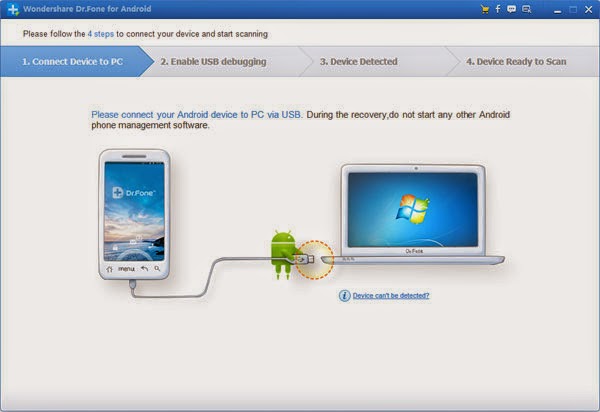
Launch the software on your computer after the installing. Then you'll get the window as below. Connect your device to the computer.

Connect Samsung Phone to Computer

Step 3 Enable USB debugging
In this step, you need to enable USB debugging on your phone. You can do that in the light of the follow steps which show different accesses for different android system.
1) Android 4.2 or newer: Enter "Settings" > Click "About Phone" > Tap "Build number" for several times until getting a note "You are under developer mode" > Back to "Settings" > Click "Developer options" > Check "USB debugging"
2) Android 3.0 to 4.1: Enter "Settings" > Click "Developer options" > Check "USB debugging"
3) Android 2.3 or earlier: Enter "Settings" > Click "Applications" > Click "Development" > Check "USB debugging"

Enable USB Debugging 4.2

The following interface shows you the recoverable files. Choose whatever you like. But "Contacts" is recommended if only the info of your acquaintance is wiped off.

Restore Android Deleted Data

Step 4 Analyze and scan your phone
After your device is detected by the software, check your phone battery to make sure it's more than 20% charged. Then click "Start" to analyze the data on your Samsung Galaxy Note 4.

Start to Scan Samsung Phones

After the a few seconds' analysis, turn to your device, you will see a popping request on the screen. You just need to click "Allow", then go back to the computer and click "Start" on the program's window to start scanning your device.

click-allow-to-start-scan

Step 5 Preview and restore deleted contacts
After a few minutes' scan, all recoverable contacts found on your device will be displayed on the window, you can preview them one by one, and tick those you want and save them on your computer by clicking "Recover".

Recover Samung Note Contacts

A powerful file recovery tool will be safer for you to retrieve your precious contacts or other data such as pictures, music, videos, SMS messages and so on. Android Data Recovery will be your best choice and reliable helper.

Download Win Download Mac

Another Way to Recover Lost Contacts from your Gmail

Go to MENU > SETTINGS > ACCOUNTS AND SYNC > GOOGLE to check if the little dot on the right is green. Green means that your Google account has been binding to your phone. That's because if you've registered your Google account on your Samsung Galaxy Note and enabled the “SYNC ALL” button on it, ‘your contacts will be automatically backed up to your Gmail. Then you can login your Gmail and bring all your contacts back from it.


Note: Back up your Samsung Galaxy Note from time to time. This will definately do you help when meeting with an emergency. One can either do a backup file with Gmail or use this tool, Android Transfer.

Recover Text Messages, Photos, Contacts, Video from Samsung Galaxy Phone


Samsung Data Recovery, is specially designed for rescuing deleted contacts from Samsung Galaxy. It will extract lost contacts directly from your device and you don’t need to input your phone numbers one by one again. In addition, messages, videos, music, and other file types are also can be retrieved.

Samsung many users are facing data loss problems, they usually store large amounts of data to the Phone, like important contacts, Christmas photos, party video, customers call history and so on. Some users suddenly lost important contacts, and when there is no backup, they can not wait to find a variety of online methods to recover data, but ultimately failed.In fact, do not worry too much,When Contacts, Photos, videos, or other files are deleted on Samsung Galaxy S6, the data itself will not be erased from Samsung Galaxy S6 immediately. The deleted Contacts will be saved in its Internal Memory or Memory Card before they’re overwritten by new files.

This program applies to all currently popular Samsung Galaxy smartphones:
Samsung Galaxy Note III, Samsung Galaxy S6, Samsung Galaxy S5, Samsung Galaxy S4, Samsung Galaxy S3, Samsung Galaxy S2, Samsung Galaxy S, Samsung Galaxy Note II, Samsung Galaxy Note, Samsung Galaxy S3 Mini, Samsung Galaxy S2 Plus, Samsung Galaxy Ace, Samsung Galaxy Y, Samsung Epic, Samsung Galaxy Grand

Click the below buttons to free downlaod Android Data Recovery to preview and get you lost files back.
 

Note: Once you deleted photos and videos from your LG G3, don't take any new photo, videos or transfer new documents to it, because those deleted files will be overwritten by new data.
Now, let's go through the step-by-step guide:

How to Recover Photos or Videos from Samsung Galaxy
Step 1 Stop Your Samsung Galaxy Data from Being Overwritten If Lost Data
Before you find an easy approach to recover your deleted Android videos or photos from your Android, be sure that you didn't do any update once you find that your Android data is lost. In this way, you can prevent your data from being overwritten. After making sure that your Android backup is well protected, you can download Android Data Recovery on your computer and try restore data with it.

Step 2 Install and Run the Program
When you finish downloading the LG recovery tool, install and run it on the computer.
Recover Text Messages, Photos, Contacts, Video from Samsung Galaxy Phone
Step 3 Connect Samsung Galaxy to Computer and Enable USB Debugging
Now, please connect your LG G3 phone to computer via USB cable. Then the program will prompt you to "Enable USB debugging" according to three different situations:
1) For Android 2.3 or earlier: Enter "Settings" < Click "Applications" < Click "Development" < Check "USB debugging"
2) For Android 3.0 to 4.1: Enter "Settings" < Click "Developer options" < Check "USB debugging"
3) For Android 4.2 or newer: Enter "Settings" < Click "About Phone" < Tap "Build number" for several times until getting a note "You are under developer mode" < Back to "Settings" < Click "Developer options" < Check "USB debugging"
Recover Text Messages, Photos, Contacts, Video from Samsung Galaxy Phone
Note: If you still get this window and the USB debugging has been enabled, please try to disable it and reset it again.

Step 4 Begin to Analyzing and Scan your Samsung Galaxy
When you see the below picture on your computer, your LG G3 has been connected to the program successfully. Go next step to analyze your phone data by clicking "Start" button.
Recover Text Messages, Photos, Contacts, Video from Samsung Galaxy Phone
You are empowered to seletively choose which type of files to be scanned. You can try clicking the box next to Photos or Videos, it will save you time.
Recover Text Messages, Photos, Contacts, Video from Samsung Galaxy Phone
What's more, you can try "Scan for deleted files". This is a time-saving steps because you don't need to waste time on scanning existing Android data.
Recover lost photos and videos form Samsung Galaxy
Turn to the screen of your LG G3 phone now, you will see a request pops up on it. Just click "Allow" and "Start" button one-by-one, which will allow the program to scan lost data from your device.
Recover lost photos and videos form Samsung Galaxy
Step 5 Preview and Retrieve Pictures & Videos from Samsung Galaxy
At the last step, preview the recoverable file in the category of "Gallery" and "Videos" at the left side of the window, then check the files you want back and click "Recover" to save them on your computer.
Recover lost photos and videos form Samsung Galaxy
Step 6 Do backup on Samsung Galaxy to Prevent Data Loss
Be upset because of precious Android data lost? You can make a habit of back up Android data frequently. To back up Android data, an useful backup program will be recommended, Android Transfer. Just use it to do backup with your Android with ease.
After 6 steps above, you will find back all your deleted photos and enjoy your favourite videos again.


Another Way to Recover Lost Contacts from your Gmail

Go to MENU > SETTINGS > ACCOUNTS AND SYNC > GOOGLE to check if the little dot on the right is green. Green means that your Google account has been binding to your phone. That's because if you've registered your Google account on your Samsung Galaxy Note and enabled the “SYNC ALL” button on it, ‘your contacts will be automatically backed up to your Gmail. Then you can login your Gmail and bring all your contacts back from it.


Note: Back up your Samsung Galaxy Note from time to time. This will definately do you help when meeting with an emergency. One can either do a backup file with Gmail or use this tool, Android Transfer.