Showing posts with label Android Photos Recovery. Show all posts

Sunday, July 2, 2017

How to restore lost photos from Samsung Galaxy S8

Losing photos is one of the most common problems for Samsung users. The question is, is there any way to recover lost photos?. In fact, it's not difficult to recover the lost photos of samsung. All you need is a professional Android data recovery software. Among the many recovery software, Samsung Galaxy photos recovery is the most popular among Android users. Because its recovery rate is the highest in the industry.          
Samsung Galaxy photos recovery, it can not only help you recover lost photos, but also can help you recover more deleted or lost data, such as contacts, SMS, video, whatsapp messages, documents, music, tapes and so on. More important point is that it is not only used in Samsung Galaxy S8, whether you are Galaxy S7, S6, S5, or HUAWEI, ZTE, SONY, HTC, LG, VIVO, OPPO, Motorola, it can help you recover lost data so.          

You can recover lost data from the Samsung Galaxy S8 as long as you do a few simple steps with the following methods.

Download Win Download Mac

How to Recover files and photos for Samsung Galaxy S8 

Step 1.Connect Samsung Galaxy S8 to Computer
Firstly please download Samsung Data Recovery,then launch it on your computer,run it and connect Samsung Galaxy S8 to PC using an USB.
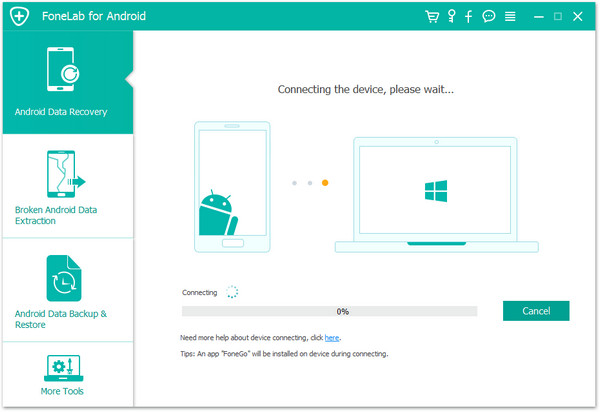
galaxy s8 data recovery

Step 2.Open the USB Debugging on Samsung Galaxy S8
Here is the right methods to open USB debugging on Samsung steps:
1) For Android 4.2 or newer: Enter “Settings”> Click “About Phone” > Tap “Build number” for several times until getting a note “You are under developer mode” > Back to “Settings” > Click “Developer options”> Check “USB debugging”
2) For Android 3.0 to 4.1: Enter “Settings” > Click “Developer options”> Check “USB debugging”
3) For Android 2.3 or earlier: Enter “Settings”> Click “Applications” > Click “Development”> Check “USB debugging”
4)For Android 5.0 or newer: Tap “Settings” > “About Phone” to tap “Build number” seven times for “You are now a developer!” signal.Then,move to “Settings” > “Developer options” to turn on “USB debugging”
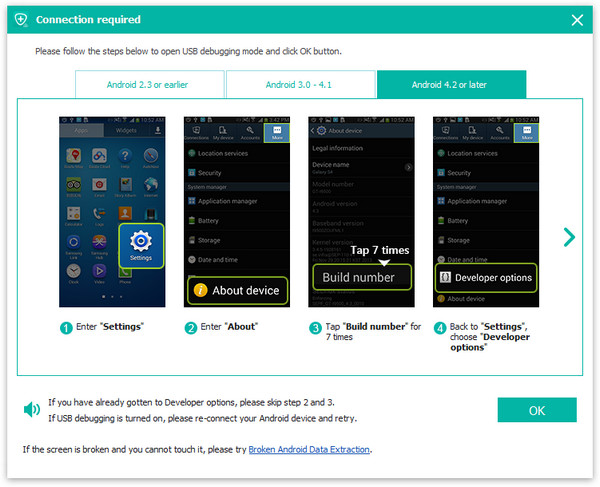
recover lost data from galaxy s8

Tips: For Samsung Galaxy S8/S7/S6 that base on Android 7.0/6.0 or above,just click OK on your phone to allow USB debugging,so the program can detect the phone.
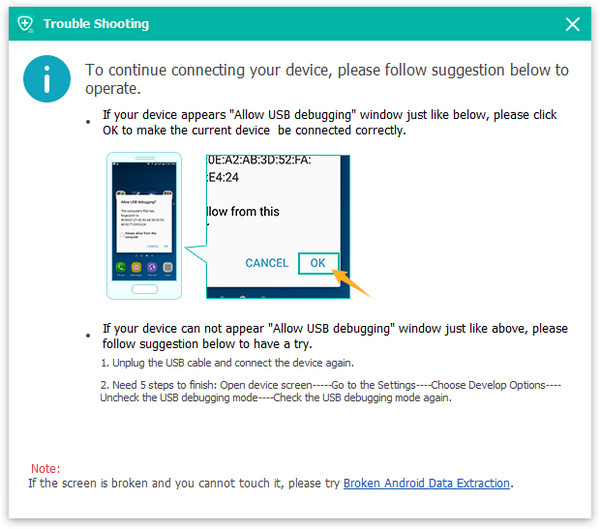
keep connect Samsung S8 to PC

Step 3.Select File Types You want to Recover from S8
The debugging process will enable easily detect your Samsung.Once your device is detected,the program will scan the device for all data,you need to select the files types from category,for example "Gallery", "Contacts", "Messages",Then click the "Next" button.
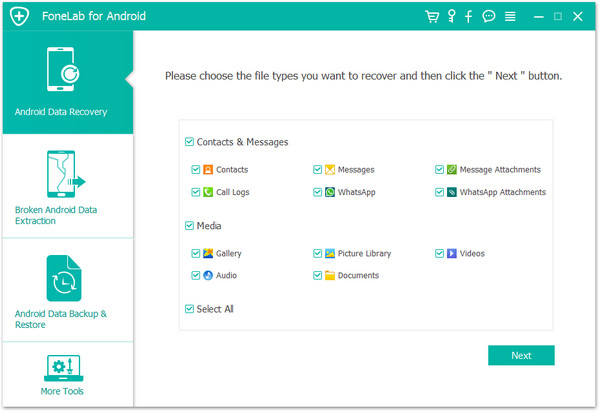
Restore Deleted Data from Galaxy S7

It will has a prompt on your phone as follow,tap "Allow" and permit the program to scan and analyze the selected files on your phone.
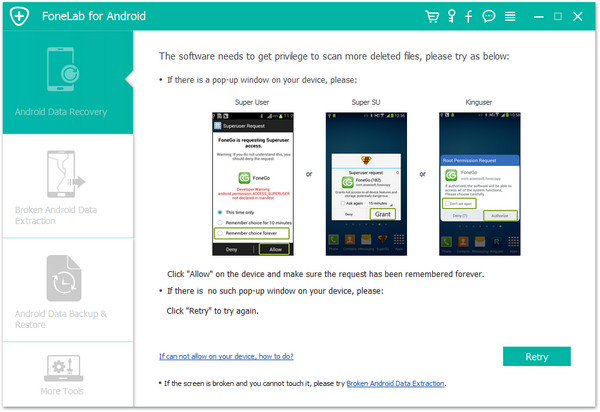
click allows for samsung galaxy s8

Step 4. Scan Samsung Galaxy S8
Begin to scan and analyze data stored on your Samsung Galaxy S8 phone.
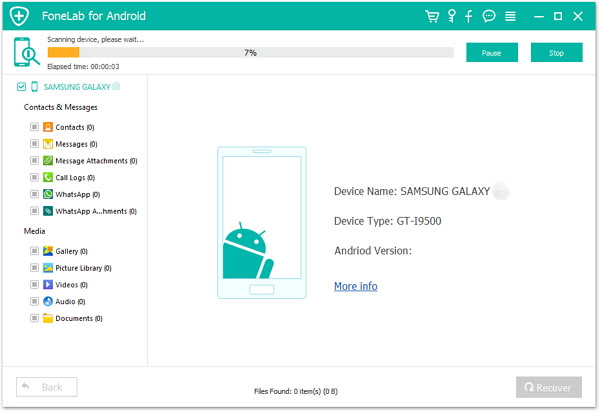
scan samsung galaxy s8 for lost data

Step 5.Preview and Retrieve Lost Data from Samsung Galaxy S8
Once the scanning is completed,all data will be displayed in the list,including Media files: Gallery, Picture Library, Videos, Audio, Documents, App data; and text files: Contacts, Messages, Message Attachments, Call logs, WhatsApp & WhatsApp Attachments.Please select the file you want to recover and preview them in details.In the last step,just select the data you wanna recover and click "Recover" to save on computer.

Recover Deleted Photos from Samsung Galaxy S8/S8 Plus


In the scanning results,to recover MOTOROLA/Samsung Galaxy S8 photos and gallerys,please click "Gallery" and "Picture Library" item in the left of the classification to preview all the recoverable photos one by one,and then you can select out those missing photos you want quickly. "Only display deleted items"option to list the deleted files only. Finally, you can click "Recover" button to recover Samsung photos and save them on computer.
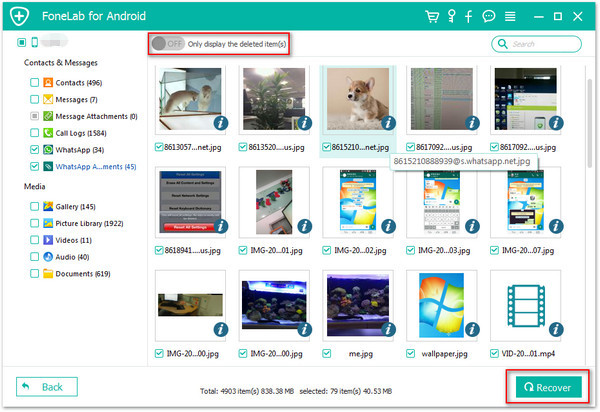
Recover deleted files from galaxy s8,s8 edge

Selectively Recover Contacts on Samsung Galaxy S8/S8 Plus


The Android data recovery will scan your GS8 device. When scan is done, check "Contacts" to preview contacts in details,including Contact Name, Phone Number, Email,etc. Then mark which lost contacts or all contacts you want and click "Recover" to recover missing contacts back from your Samsung device,and all retrieved contacts will be saved on the computer as VCF, CSV or HTML for your use.
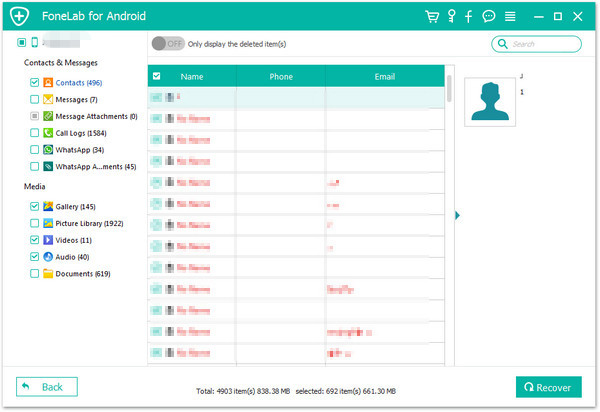
recover contacts from galaxy s8

Recover Text Messages from Samsung Galaxy S8/S8 Plus


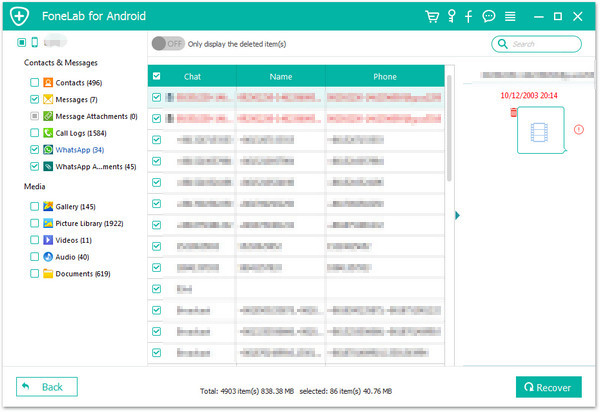
When scan is complete, you can preview all deleted text messages before recovering. Check "Messages" item to preview them one by one. You can read all conversations in the window, including name, date, contents, and time. After that, you can select the lost SMS on Samsung Galaxy S8 and recover them by click "Recover" button,only few seconeds,all of your SMS deleted will by extracted and saved on the computer as CSV, HTML format and attached images.
recover sms on samsung galaxy s8

Regardless of whether you accidentally lost data from Samsung due to factory reset or other reasons,you need to have the safe and efficient way to get them back without any data loss,the Samsung Data Recovery is your best accessibility which used for data recovery.In additional,it allows you extract and recover lost data from broken Samsung Galaxy S5/S4/S3/Note, Galaxy Tab with broken screen,black screen or other damaged situation.In additional,to avoding data lost or deleted on your Samsung phone or tablet,we recommend you backup data and restore to Samsung after factory reset with a Android data backup tool,which not only supports backup and restore contacts,sms,photos and more from Samsung Galaxy on computer,but also enables you directly transfer data between iPhone and Samsung Galaxy S8/S7/S6 without data loss.

Download Win Download Mac

Thursday, June 22, 2017

How to Recover Lost Data from Any Android phone

In our daily life, we use smart phones in many ways, such as taking photos, listening to music, watching videos, surfing the Internet, recording, storing files and so on. Smart phones are an important part of our lives. Of course, most smartphones use Android systems, such as Samsung, HUAWEI, ZTE, HTC, LG, Vivo, Motorola, SONY, and so on. 
         
Of course, smartphones aren't everything. In our daily life, when we use mobile phones, we will encounter some unexpected circumstances, resulting in the loss of data on our Android mobile phone. Once you have a problem with missing data, you'd better stop using your cell phone and avoid adding new files to cover old data. Then you can search the Internet for related methods, and you'll find that many Android users will encounter this problem.
         
A method recommended by many Android users is recommended here, which can solve the problem of data loss perfectly. Android data recovery - many Android users encounter data loss problems, they will choose a Android data recovery software, the software is not only functional, but also can operate very simple. It can restore the call logs, photos, contacts, SMS, email, documents, notes, music, video, audio and other data, and can be used in various brands of Android mobile phone, for example: Samsung, HUAWEI, Motorola, SONY, millet, ZTE, HTC, OPPO, VIVO, Google, LG and so on.           

If your mobile phone is a Android system, and also encountered the problem of data loss, you can try this method, you can download free software to detect whether you want to recover the data, and then follow the instructions to step back to the data.


Download Win Download Mac

Android Phone Data Recovery - recover contacts,sms,photos,videos,ect from Android phone
Lost data on your android mobile phone? Deleted files on your android devices?Want to get data back from a broken Samsung phone?Don’t worry,the data recovery for android can help you restore data from Samsung, HTC, LG, Motorola, Sony,Huawei,ZTE,ect.

Easy Steps to Retrieve Deleted Data from Android Phone


Step 1.Connect your Android phone to the computer with USB cable
Download Andriod Data Recovery on your computer, install and launch it to continue recovering, you will see the main window as follows,then click "Data Recovery"


Step 2. Enable USB Debugging on Android
This window apprears to warn you debugging your phone first after connected to computer.
After connecting your Android to the computer, go to the step 2 - Enable USB debugging.
According to the specific Android OS version running on your device, choose a way to enable it:

1). For Android 4.2 or the newer: Enter "Settings > About Phone > Build number" for several times and when you get the note: "You are under developer mode", you can go back to "Settings > Developer options > USB debugging".
2). Android 3.0 to 4.1: Enter "Settings > Developer option > USB debugging".
3). Android 2.3 or earlier: Enter "Settings > Applications > Development > USB debugging".


If your Android os version is 4.2.2 or above, there will be a pop up message on your Android phone, tap on OK to allow USB debugging.

Step 3.Select the Type of Files You Want
After the phone is connected successfully, the program will display all the data types it supports to recover,such as photos, videos, contacts, messaging, call logs, and more. By default, it has checked all the file types. You can just select the type of data that you'd like to recover. And then click "Next" to continue the data recovery process.


Step 4.Allow Scan Your Android Phone
When you see the window below, it is time for you moving to your Android device again, tap on the "Allow" icon, then turn back to the computer and click on the "Start" button to continute.


Step 5.Choose A Scan Mode
In this step,the program will pop up a windows for you choose a scanning mode - "Standard Mode" or the "Advanced Mode".We recommend you to try "Standard Mode" first, which works faster. If it doesn't find the files you are looking for, you can then try "Advanced Mode".


Then,plase click "Start" to begin analyzing and scanning your Android device for all lost or deleted data.

Step 6. Scan Lost data on your Android Device
Click "Start" to analyze your device, it may take a few seconds to finish.


Step 7. Preview and Restore Contacts, SMS, Pictrues, Videos, WhatsApp from Android
After the scanning, you can preview and choose the specific part data to "Recover".
When the scan is complete, you can preview the found contacts, SMS, photos, videos, music, WhatsApp, call history, Gallery, documents data one by one,check the items you want and click "Recover" to save them all on your computer.


Well done. You have recover Android lost data back,with the help of this Android Data Recovery,you can also restore all lost SMS, photos, videos, call history and contacts back back to your phone from computer.

Now you did it! After few steps, you get your lost data back for Android devices.

Download Win Download Mac


The Powerful Data Recovery Software to Restore Data from Android

-Android Data Recovery helps you to restore contacts, messages, photos and videos on Andriod phones and tablets.
-Restore the contacts and SMS text messages you deleted accidently, and select specific contains to recover by preview.
-Find back the photos and videos from SD card inside your Andriod devices which were deleted, restore factory settings, ROM flashing, ROOT, etc.
-Support several bands of Android phones and tablets, such as Samsung, Google Pixel, Nexus, Sony, HTC, LG, Motorola, etc.
-Only retrieve and restore android lost data, not a single personal information will be leaked.

Backup Your Android Data Regularly


Though our Android Data Recovery can help you recover missing data back,no matter deleted or lost,but we still recommend you back up your Android data to computer,in order to prevent data loss,you can buy a new phone but your can't get lost data back,right?

You can back up data with official backup Application,it according to the different phone brand,for example:

Samsung Galaxy S7/S6/S5/S4/Note and other Samsung devcie - Samsung Kies
HTC One M9/M8 and other HTC phones/tables - HTC Sync Manager
Sony xperia/XZ -  Sony PC Companion
Huawei Mate 9/Mate 8/P9/P8 and other Android Huawei devices - HiSuite
iPhone 7/6S/6,iPad Pro/Air and other ios devices- iTunes

Also,you can sync your phone data to cloud storage space,like iCloud, Samsung Cloud, Dropbox or Google Photos app,etc.

We recommend you backup your data to computer and make sure your important data security.Another most easy and safely way to back up Android data is to get help from the third-party software - Phone Transfer and Android Data Backup & Restore in Android data recovery,both allows you back up everything from Android to computer quickly,including contacts, text messages,photos, videos, call history, playlists info, apps data,etc.When you have make your Android data back with both third-party App,it also allows you restore backed up data to any Android devices,when you have purchased a new phone.

Here, we strongly recommend you use this phone management software - iOS & Android Manager,which not only allows you backup data from Android/iPhone to computer,but also can help you transfer contacts, sms, photos, videos, music,etc from Android to iOS,iOS to Android, Android to Android, iOS to iOS easily; transfer music from iTunes to Android,it can do what iTunes or other official backup Application can't.

Saturday, June 10, 2017

How to recover lost photo from MOTOROLA

The poor situation we’ll encounter
How to restore MOTOROLA lost photos, I believe this problem, many Motorola users will encounter. This is a very common problem in our daily life. Because a lot of the time, we will because of the wrong operation leads to lose photos, or touch the delete key let the photos we do not want to delete deleted. This is a very common problem in our daily life. So what can you do to restore Motorola's photos? 

How to recover lost photo from MOTOROLA
RestoringMotorola photos, in fact, this software has a very good solution. As long as you download an Androiddata recovery software, Android recovery software is a popular software for Motorola users. Because this software is not only simple, but also has perfect function. It is not only suitable for a variety of Android mobile phone system, such as: Samsung, HUAWEI, OPPO, VIVI, HTC, LG, ZTE, SONY and so on.Meanwhile, Android data recovery software can also restore a variety of data, such as: contacts, SMS, video, sound, music, calendars, files etc..          


Want to restore Motorola's first photo, you can download free software to detect the following is there you want to restore photos, then follow our instructions step by step operation can easily recover lost photos.

Download Win Download Mac

How to Recover files and photos for MOTOROLA/Samsung Galaxy S8 

Step 1.Connect MOTOROLA/Samsung Galaxy S8 to Computer
Firstly please download Samsung Data Recovery,then launch it on your computer,run it and connect Samsung Galaxy S8 to PC using an USB.

galaxy s8 data recovery

Step 2.Open the USB Debugging on MOTOROLA/Samsung Galaxy S8
Here is the right methods to open USB debugging on Samsung steps:
1) For Android 4.2 or newer: Enter “Settings”> Click “About Phone” > Tap “Build number” for several times until getting a note “You are under developer mode” > Back to “Settings” > Click “Developer options”> Check “USB debugging”
2) For Android 3.0 to 4.1: Enter “Settings” > Click “Developer options”> Check “USB debugging”
3) For Android 2.3 or earlier: Enter “Settings”> Click “Applications” > Click “Development”> Check “USB debugging”
4)For Android 5.0 or newer: Tap “Settings” > “About Phone” to tap “Build number” seven times for “You are now a developer!” signal.Then,move to “Settings” > “Developer options” to turn on “USB debugging”

recover lost data from galaxy s8

Tips: For MOTOROLA/Samsung Galaxy S8/S7/S6 that base on Android 7.0/6.0 or above,just click OK on your phone to allow USB debugging,so the program can detect the phone.

keep connect Samsung S8 to PC

Step 3.Select File Types You want to Recover from MOTOROLA/S8
The debugging process will enable easily detect your Samsung.Once your device is detected,the program will scan the device for all data,you need to select the files types from category,for example "Gallery", "Contacts", "Messages",Then click the "Next" button.

Restore Deleted Data from Galaxy S7

It will has a prompt on your phone as follow,tap "Allow" and permit the program to scan and analyze the selected files on your phone.

click allows for samsung galaxy s8

Step 4. Scan MOTOROLA/Samsung Galaxy S8
Begin to scan and analyze data stored on your Samsung Galaxy S8 phone.

scan samsung galaxy s8 for lost data

Step 5.Preview and Retrieve Lost Data from MOTOROLA/Samsung Galaxy S8
Once the scanning is completed,all data will be displayed in the list,including Media files: Gallery, Picture Library, Videos, Audio, Documents, App data; and text files: Contacts, Messages, Message Attachments, Call logs, WhatsApp & WhatsApp Attachments.Please select the file you want to recover and preview them in details.In the last step,just select the data you wanna recover and click "Recover" to save on computer.

Recover Deleted Photos from MOTOROLA/Samsung Galaxy S8/S8 Plus


In the scanning results,to recover MOTOROLA/Samsung Galaxy S8 photos and gallerys,please click "Gallery" and "Picture Library" item in the left of the classification to preview all the recoverable photos one by one,and then you can select out those missing photos you want quickly. "Only display deleted items"option to list the deleted files only. Finally, you can click "Recover" button to recover Samsung photos and save them on computer.

Recover deleted files from galaxy s8,s8 edge

Selectively Recover Contacts on MOTOROLA/Samsung Galaxy S8/S8 Plus


The Android data recovery will scan your GS8 device. When scan is done, check "Contacts" to preview contacts in details,including Contact Name, Phone Number, Email,etc. Then mark which lost contacts or all contacts you want and click "Recover" to recover missing contacts back from your Samsung device,and all retrieved contacts will be saved on the computer as VCF, CSV or HTML for your use.

recover contacts from galaxy s8

Recover Text Messages from MOTOROLA/Samsung Galaxy S8/S8 Plus


When scan is complete, you can preview all deleted text messages before recovering. Check "Messages" item to preview them one by one. You can read all conversations in the window, including name, date, contents, and time. After that, you can select the lost SMS on Samsung Galaxy S8 and recover them by click "Recover" button,only few seconeds,all of your SMS deleted will by extracted and saved on the computer as CSV, HTML format and attached images.

recover sms on samsung galaxy s8

Regardless of whether you accidentally lost data from Samsung due to factory reset or other reasons,you need to have the safe and efficient way to get them back without any data loss,the Samsung Data Recovery is your best accessibility which used for data recovery.In additional,it allows you extract and recover lost data from broken Samsung Galaxy S5/S4/S3/Note, Galaxy Tab with broken screen,black screen or other damaged situation.In additional,to avoding data lost or deleted on your Samsung phone or tablet,we recommend you backup data and restore to Samsung after factory reset with a Android data backup tool,which not only supports backup and restore contacts,sms,photos and more from Samsung Galaxy on computer,but also enables you directly transfer data between iPhone and Samsung Galaxy S8/S7/S6 without data loss.

Download Win Download Mac

Thursday, March 9, 2017

How to recovery lost/deleted data from Android

"I am a SONY mobile phone user, my mobile phone system is Android, one day I may accidentally put some of my precious photos and several important contacts to delete. When I was looking for it, I found I didn't have a backup. I need to get them back, because they are very important to me, how can I getthe data back?"

Today, Android has more and more mobile phone users, there are a lot of Android mobile phone users worldwide. The problem of missing data or accidentally deleting data occurs every day. In fact, when we encounter such problems, we only need a simple operation. You only need to download a Android data recovery software, then you can retrieve your missing data. Whether you're missing photos, music, text messages, videos, recordings, and even contacts, Android data recovery software can help you recover perfectly.

Android data recovery software for a variety of Android mobile phone system, whether your mobile phone is Samsung, SONY, LG, Motorola, HUAWEI, millet, oppo, vivo, or ZTE, as long as the number according to the Android system can use Android data recovery software to recover your lost. You just need to follow the guidelines, you can easily retrieve your lost data.


Ease-to-use helps to recover lost data like photos,musics, video, audio and other media files from almost all of your Android devices, such as HTC, Samsung, Motorola, Sony, LG, Huawei etc.
Step 1: Download and install the free trial version on your computer. Then double click over the icon and open it. Plug your phone into the computer via USB cable.


Step 2: The software won’t detect your Android phone unless you allow it to do so. If USB debugging mode is opened on your phone, you will receive a pop-up message on the phone screen requiring the permission. Otherwise, you have to enable the USB debugging mode so as to move forward. The on-screen instruction from FoneLab will show you how to enable it, depending what Android version your Phone is.

Step 3: Once the connection is complete, you have various file types to choose. Mark the box beside Contacts and click Next.

Step 4: If your Android smart phone has been rooted before, you will get a pop-up message on the screen, you should tap Allow/Grant/Authorize to allow the program get privilege of scanning data from your device. If not, the program will automatically root your phone via installing an app. Click Retry if still no respond.

Step 5: It will take some time for the scanning process. Once it is done, you are allowed to preview the contacts in details with name, phone number, email address, etc. Select those you want to save on the computer and click Recover. The contacts backup file is saved in VCF/CSV/HTML format for different usages.