Showing posts with label android contacts recover. Show all posts

Tuesday, July 25, 2017

How to Recover Contacts from Black Screen Samsung Phone

Samsung has a lot of loyal users around the world, and they're going to have some very unfortunate things to do with their Samsung products. Today, I will introduce you to one of the most frequently encountered problems for Samsung users. How can I find a backup person who has no backup in the black screen of Samsung mobile phone?. The vast majority of Samsung users believe that Samsung mobile phone encountered a black screen, there is no way to retrieve the data inside, and take the phone to repair, after the repair will re enter the contacts stored in the phone. Actually, it's not complicated to solve this problem, and it's very simple, so you just need a little mouse.

Blank screen is one of the frequently encountered problems in Samsung Galaxy mobile phones. If your Samsung phone is a black screen, this article will show you the best and easiest way to restore contacts. Since most users don't have the latest backup of their phones, we'll show you the way to recover from the black screen Samsung phone without a backup contact. That way, you can retrieve all the information on your Samsung Galaxy phone and then go into the black screen.

I will use the Samsung data recovery program in this article. It can connect and scan your black screen, Samsung Galaxy phone, it is easy to find contacts and other data on your mobile phone and SD card. You can preview names, phone numbers, email addresses, titles, birthdays, and other information that you have in your contacts, and then recover them easily. You can also recover text messages, photos, videos, call logs, WhatsApp message, music, books, and other documents from your black screen Samsung phone.

The software fully supports Samsung devices such as the Galaxy Note series, the Samsung Galaxy S series and the Samsung Galaxy Tablet. Preview the recoverable file and then resume free of charge. 100% safe and clean during recovery.


Learn how to restore black screen photos of Samsung phones here

Download Win Download Mac

Step 1. Run Samsung Data Recovery

Free download, install and run Samsung Recovery program on your computer. Select the second option on the main interface “Broken Android Phone Data Extraction”. Connect your black screen Samsung phone to your computer via USB cable. This program will detect and connect your phone to it easily.

Step 2. Select Samsung Phone’s Name and Model

Click “Start” button on the interface, you need to select the name and model in the drop-down list on the interface. Please make sure you select the right name and model or this program won’t screen your phone at all. After that, agree with the disclaimer and click “Confirm” button on the interface.

Step 3. Enter Download Mode

Now you need to follow the instruction on the interface to put your black screen Samsung phone into Download Mode. It’s really easy to follow. Once your phone enters the download mode, click “Start” button. This program will begin to screen your black screen Samsung phone.

Step 4. Scan Black Screen Samsung Phone to Find Contacts

This program will scan your black screen Samsung phone and SD card deeply. It will find contacts, photos, videos, text messages, call logs, Whatsapp messages, music, books and other document files from your black screen Samsung Galaxy phone. After scanning, it will list all the data on the interface with a data menu on the left side. You can use it to find any data, preview data and recover them from your phone to computer.

Step 5. Recover Contacts from Black Screen Samsung Phone

Click “Contacts” section on the data menu, you will see all the contacts on your phone. You can select any of them to preview. After selecting all the contacts you want to restore, click “Recover” button. This Samsung Recovery program will begin to recover contacts from black screen Samsung phone to computer as soon as possible. All the recovered contacts will be saved on your computer. You can find them easily after recovering.
That’s all for recovering contacts from black screen Samsung phone. This Samsung Data Recovery program will scan your phone and find the contacts for you. You can preview them and recover from your black screen Samsung phone to computer easily. Besides contacts, you can also recover messages, photos, videos, call logs, Whatsapp messages, music, books and other document files from black screen Samsung phone to computer.
Download Win Download Mac

Monday, March 13, 2017

How to Recover deleted or Lost Contacts to Android

If you own or planning to purchase Android smartphone that runs on Android 5.0. Is’t will help you to recover data if you lose/delete your data from it. There are various scenarios where users delete their data by mistake from their phone and thereafter they look for a solution how to get them back.
Android Data Recovery may help you a lot to recover contacts from android phone memory or SIM Card. It is a program with human-based designs which is quick and easy to use. And the software support many Android devices such as Samsung, HTC, Motorola, LG and Sony. Android is becoming more and more popular for its openness and rich features, there are many brands mobile phone running Android as operating system, such as Samsung, HTC, Motorola, Sony, LG and more.


How to Recover Deleted and Lost Android Contacts

Note: Please check your Android device model and the Android OS here before you perform the recovery. Not all Android devices are supported right now by Android Data Recovery.

Step 1. Connect your Samsung mobile phone to the computer (enable USB debugging)

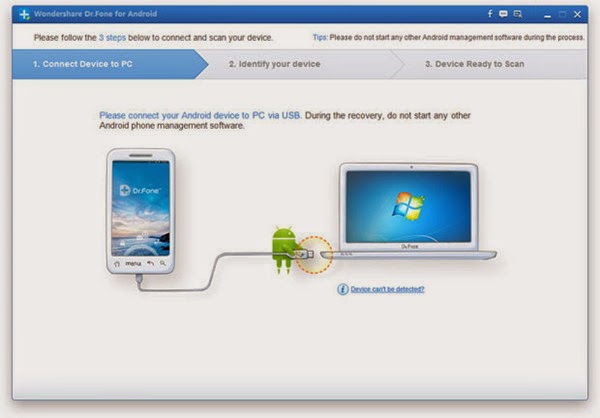
Download, install and run Android Data Recovery on your computer, and you’ll get the main window below.


Recover Deleted Android Contacts


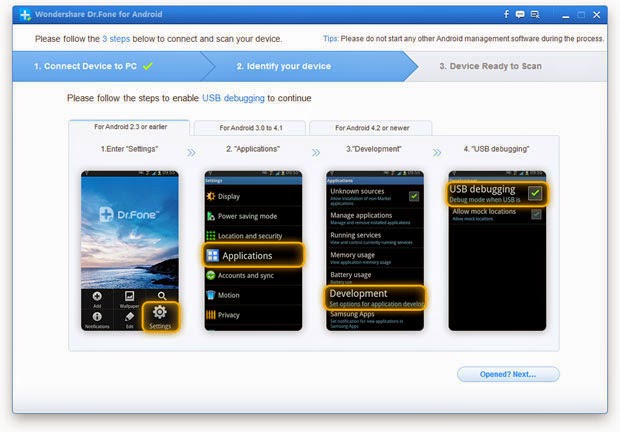
If you didn’t enable USB debugging on your device, you’ll see the window below. Follow the detailed expression below. There are three different ways to finish this job for different Android system:

Note: If you have already enabled USB debugging on your device before, you can skip this step.

1) For Android 2.3 or earlier: Enter “Settings” < Click “Applications” < Click “Development” < Check “USB debugging”

2) For Android 3.0 to 4.1: Enter “Settings” < Click “Developer options” < Check “USB debugging”

3) For Android 4.2 or newer: Enter “Settings” < Click “About Phone” < Tap “Build number” for several times until getting a note “You are under developer mode” < Back to “Settings” < Click “Developer options” < Check “USB debugging”


Recover Deleted Android Contacts


Then connect your Android device to the computer and move to the next step.

Step 2. Analyze and scan your Android device for lost contacts

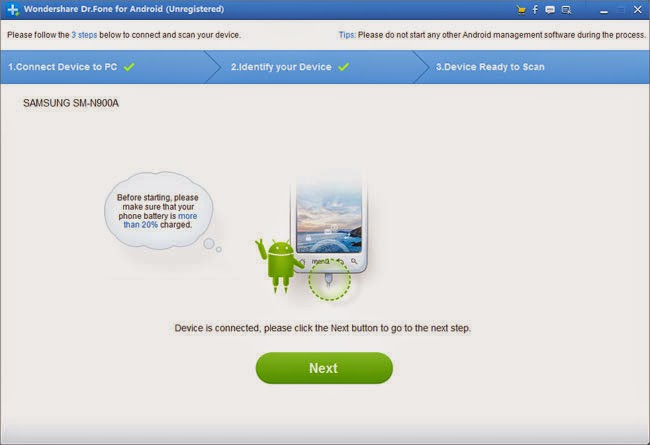
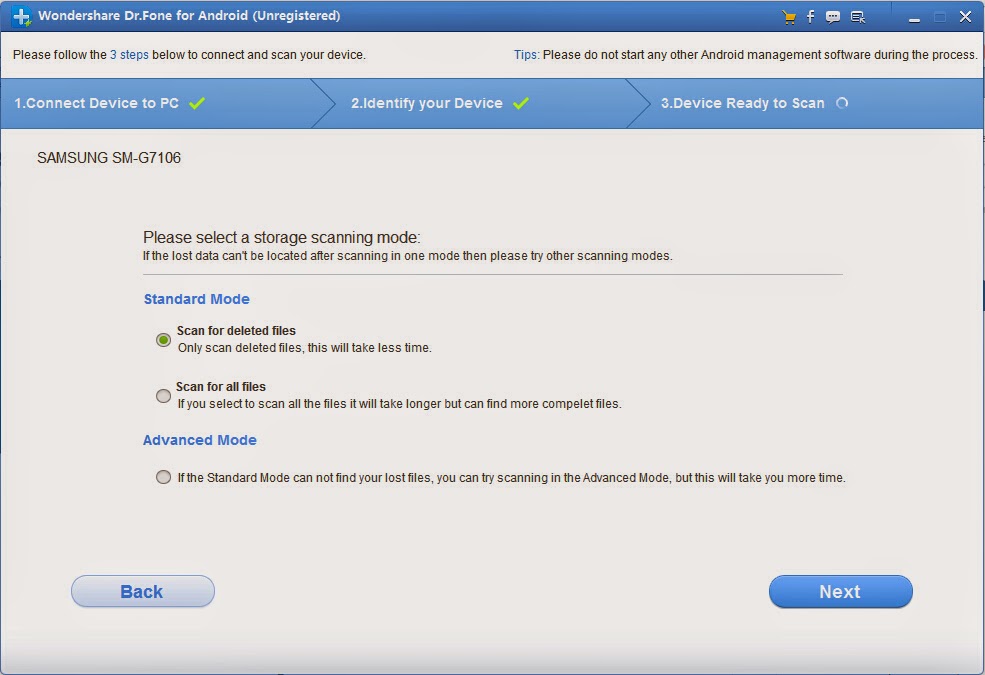
After the program detected your Android device, you’ll get a window below. Before scanning your device, let the program analyze it by clicking “Next” button.


Recover Deleted Android Contacts


Recover Deleted Android Contacts


Recover Deleted Android Contacts


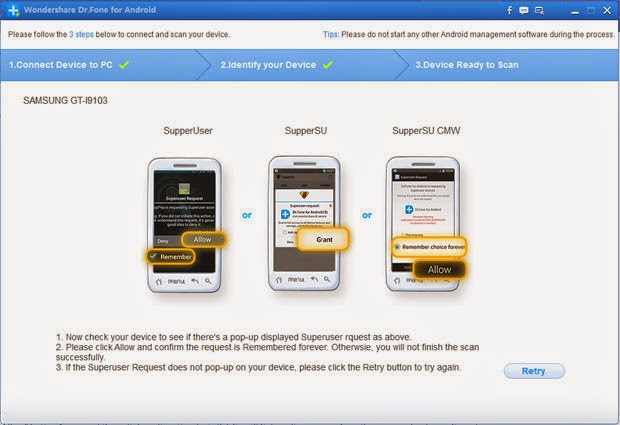
The analysis will take you a few seconds. After that, you’ll get a window as follows. As the window shows, click “Allow” button on your Android device’s screen to permit the Superuser Request.


Recover Deleted Android Contacts


Step3. Preview and restore contacts from Android phones

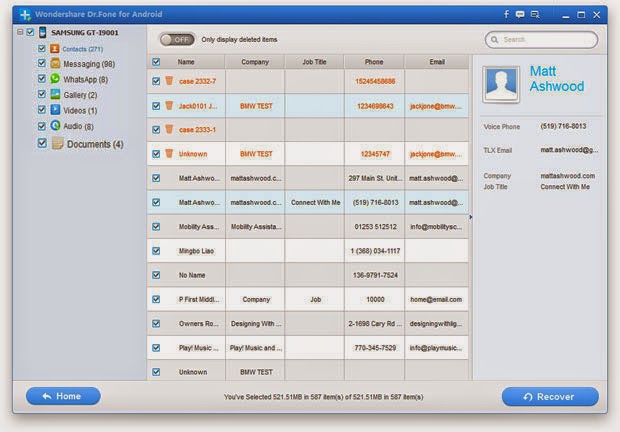
After the scan, it will remind you when all contacts and messages have been scanned out. Then you can stop it and preview all your contacts. Mark the data those you want to get back and click “Recover” button to save them on your computer.


Recover Deleted Android Contacts


Note: Contacts in the scan result are displayed in different colors. Actually,those in orange are the contacts deleted recently, and the black ones are those existing contacts on your Android phone. If you have such a need, you can use the button above (Only display deleted items) to separate them.

Now, download the free trial version of Android Data Recovery below to have a try.


Thursday, March 9, 2017

How to recovery lost/deleted data from Android

"I am a SONY mobile phone user, my mobile phone system is Android, one day I may accidentally put some of my precious photos and several important contacts to delete. When I was looking for it, I found I didn't have a backup. I need to get them back, because they are very important to me, how can I getthe data back?"

Today, Android has more and more mobile phone users, there are a lot of Android mobile phone users worldwide. The problem of missing data or accidentally deleting data occurs every day. In fact, when we encounter such problems, we only need a simple operation. You only need to download a Android data recovery software, then you can retrieve your missing data. Whether you're missing photos, music, text messages, videos, recordings, and even contacts, Android data recovery software can help you recover perfectly.

Android data recovery software for a variety of Android mobile phone system, whether your mobile phone is Samsung, SONY, LG, Motorola, HUAWEI, millet, oppo, vivo, or ZTE, as long as the number according to the Android system can use Android data recovery software to recover your lost. You just need to follow the guidelines, you can easily retrieve your lost data.


Ease-to-use helps to recover lost data like photos,musics, video, audio and other media files from almost all of your Android devices, such as HTC, Samsung, Motorola, Sony, LG, Huawei etc.
Step 1: Download and install the free trial version on your computer. Then double click over the icon and open it. Plug your phone into the computer via USB cable.


Step 2: The software won’t detect your Android phone unless you allow it to do so. If USB debugging mode is opened on your phone, you will receive a pop-up message on the phone screen requiring the permission. Otherwise, you have to enable the USB debugging mode so as to move forward. The on-screen instruction from FoneLab will show you how to enable it, depending what Android version your Phone is.

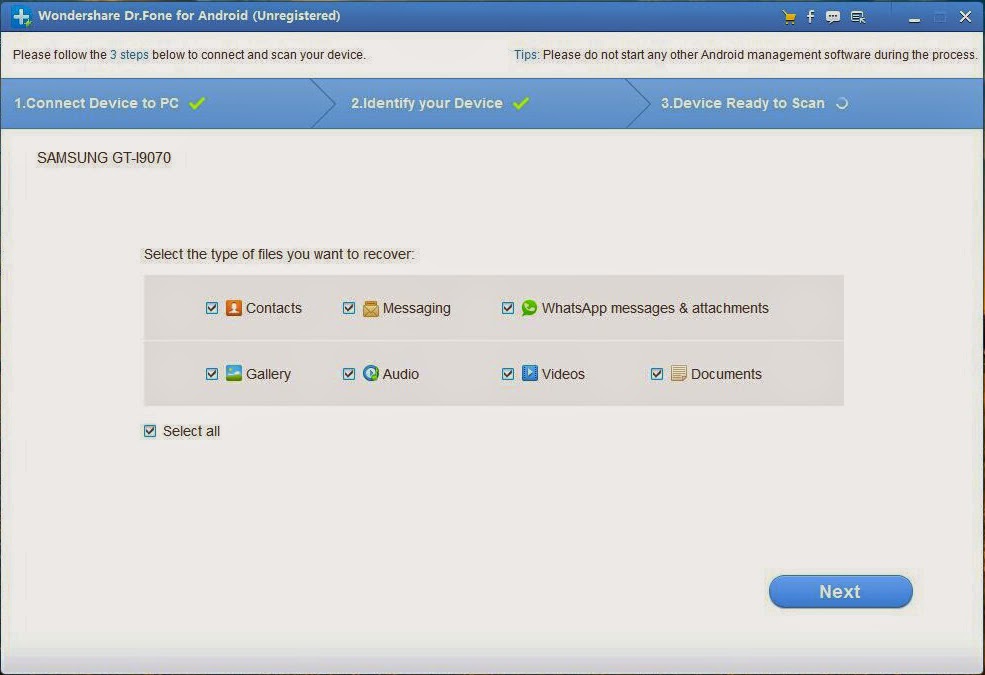
Step 3: Once the connection is complete, you have various file types to choose. Mark the box beside Contacts and click Next.

Step 4: If your Android smart phone has been rooted before, you will get a pop-up message on the screen, you should tap Allow/Grant/Authorize to allow the program get privilege of scanning data from your device. If not, the program will automatically root your phone via installing an app. Click Retry if still no respond.

Step 5: It will take some time for the scanning process. Once it is done, you are allowed to preview the contacts in details with name, phone number, email address, etc. Select those you want to save on the computer and click Recover. The contacts backup file is saved in VCF/CSV/HTML format for different usages.


Friday, November 20, 2015

Recover Deleted Contacts from Android

Android is becoming more and more popular for its openness and rich features, there are many brands mobile phone running Android as operating system, such as Samsung S6, HTC M9/M8, LG G3 and more. However, as far as I'm concerned, many Android users feel depressed when all of their phone contacts have been erased or lost after wiping phone or buying a new one. Is there any solution to restore all your lost contacts back?

Yes, of course you can restore deleted contacts from your Android phone with Android Data Recovery, it allows you to recover deleted contacts directly from Android or SIM card on Android phones. Now let's go throught how to retrieve lost contacts from an Android phone, but you need to free download the program on your computer first.


Steps to restore deleted contacts from an Android phone

Note: Once your Android data get lost, you'd better not to add or delete data in the Android smartphone. If you do that, the Android backup file will be overwritten and what you lost can never be restored.

Step 1 Install and run the Android recovery tool
To start with, install and launch the program on your Window or Mac computer.

Launch this App

Step 2 Connect Android to computer and enable USB debugging
Then connect your Android phone to computer and check if you have enabled USB debugging on your Android phone. If not, follow the ways below; If you did, you can move to the 3rd step now.

1) For Android 4.2 or newer: Enter "Settings" > Click "About Phone" > Tap "Build number" for several times until getting a note "You are under developer mode" > Back to "Settings" > Click "Developer options" > Check "USB debugging"
2) For Android 3.0 to 4.1: Enter "Settings" > Click "Developer options" > Check "USB debugging"
3) For Android 2.3 or earlier: Enter "Settings" > Click "Applications" > Click "Development" > Check "USB debugging"

Check Android Debugging

Android Data Recovery empowers you to selectively choose which type of files to be scanned. If you want to recover Android contacts only, you can tick "Contacts" because it takes less time to scan only contacts than scan all the data.

Select Contacts

Step 3 Begin to scan your Andorid for lost contacts
Now you are in step 2 - Device Detected, that means your Android has been detected by the program successfully. Here, you just need to let the software analyze your Android device and wait for a few seconds.

When below window comes to you, you need to turn to your Android phone and click "Allow" popping up on the screen, until it disappear, and then back to the program and scan your Android for lost contacts.

Tap Allow

Step 4 Preview and restore contacts on Android
After all contacts and messages have been scanned out, the program will remind you stop the scan, because it is a waste of time to scan all data. Then you can preview all contacts one by one in the scan result, mark those you want and click "Recover" to selectively save them on your computer.

Restore Contacts

Note: Contacts found in the scan result contain those you deleted recently (displayed in orange) and those existing on your Android phone (displayed in black). Besides, you could recover some of them or all.

Step 5 Back up Your Android Device from Time to Time
To form a habit of back up Android files from time to time is with no doubt a good thing. Once you deleted your Android data accidentally, you can just use Android Data Recovery to retrieve deleted data from Android.